Installation Guide Tobii Attention Panel
This installation guide is divided into two sections: installation of software and hardware (eye tracker). The process should take around 10 minutes in total.
SOFTWARE INSTALLATION
Step 1: Download the Chrome extension for the Chrome browser
- Download the extension in Chrome Web Store by clicking the following link; Tobii Attention Panel Chrome Extension .
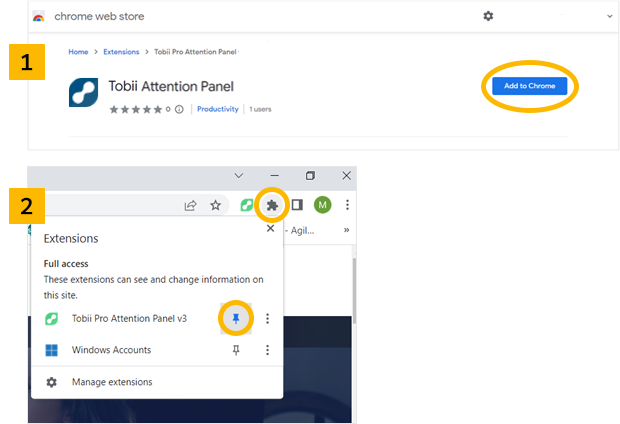
- Click on the blue button "Add to chrome" (see image 1 below). A new page should open.
- Pin the Tobii extension to your browser by clicking the pin and making it blue (see image 2 below).
Step 2: Enter your Tobii ID
- When you click on the extension icon:
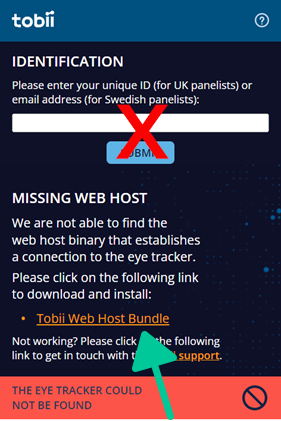
 , you will see the extension pop-up, which looks like the picture found below.
 - Enter your Tobii ID in the blank space and click "SUBMIT" to register for your reward.
- We will have sent you your Tobii ID, but you can also find it on your 'Tobii Panel Page'. This page can be found on your Norstat Panel account.
- DO NOT enter your email address.
Step 3: Install web host
- In the extension pop-up, click the orange link that says Tobii Web Host Bundle.
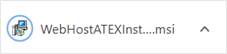
- It will automatically download a file to your computer. You will see the file in the bottom left corner of the window. It looks like the image below. Click on the downloaded file to open it.
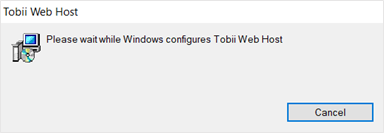
- You will then get a prompt from Windows that tells you to wait for the Web Host to be configured. See the image below.
- During this process, Windows will ask you to allow the app to make changes to your device. Click "Yes". See the image below.
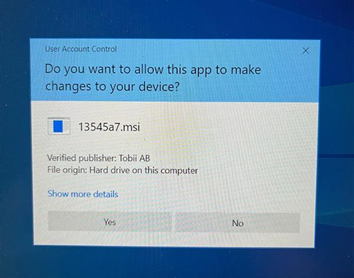
- Once the installation is complete, restart the browser.
 Software installation completed.
How to check if it’s working:
  | everything is working! |
| there is an error that needs your attention, please click on the icon |
 | there is a warning that needs your attention, please click on the icon. It could be that either the eye tracker isn't plugged in, cannot be found, has lost connection, or the eye tracker has an error. It could also be that an update of the webhost version is required |
 | extension is currently loading. Proceed with regular use until it changes |
 | it has been more than 10 seconds since the last eye movement detected |
HARDWARE INSTALLATION
Step 1: Installation of eye tracker
- Remove the plastic film from the magnetic strip and attach it to the center at the bottom of your computer screen, with the rugged side up.
- Attach the eye tracker to the magnetic strip and plug the cable into a USB port on your computer.
- For a curved screen, use the included bracket by placing it under your screen.
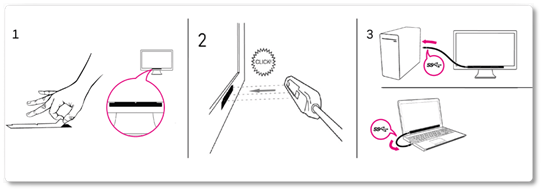
NOTE: The magnetic strip and the cable provided are recommended for the best results.
Step 2: Activation of eye tracker
- To activate the eye tracker, it needs to be plugged into the USB port on your Windows 10 computer.
- Download the PC driver for the Attention Panel by clicking the highlighted link: Tobii Experience.
- If you don't already have the Tobii Experience app, go to the Microsoft store and search for "Tobii Experience". Then download the app "Tobii Experience" with a blue logo.
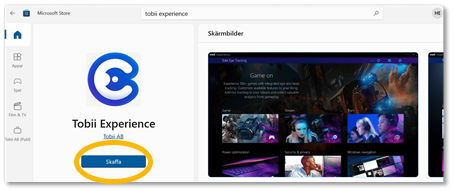
- Launch the app and finish the screen setup according to the instructions in the application: two arrows on the screen should match the eye tracker's two white lines on the top.
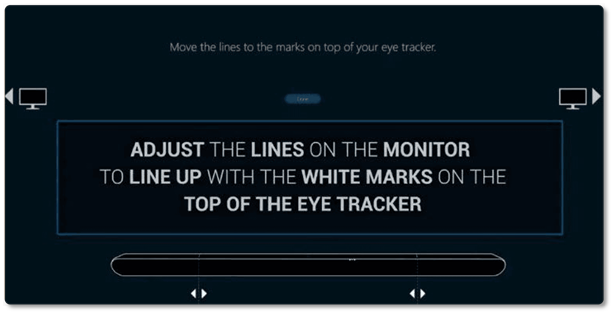
Step 3: Adapt your eye tracker to your eyes
- After installation, you will need to calibrate the eye tracker to give you the most accurate gaze algorithm based on your unique eye characteristics. You will be recorded as a new profile in the software by adapting the eye tracker to your eyes
- The calibration is started automatically, just follow the instructions on the screen
Hardware installation completed.
All steps of the installation are now complete. Make sure the Chrome extension icon is green: , and use your computer as usual. Try to always have your eye tracker connected when you participate in the survey.
Thank you!
Tobii Android App Download Guide
Extension links
Chrome extension:
https://chrome.google.com/webstore/detail/tobii-pro-attention-panel/hgaapnaapbegifeilocnkmciphfggffm?hl=en
Tobii experience (If It’s not downloaded automatically):
https://files.update.tech.tobii.com/Tobii.EyeTracker5.Offline.Installer_4.153.0.22216.msi